How to Add Guests Registration, Dietary, Medical
Manage your event in Venue 360 primarily through Group Self-Service (GSS) online feature. This is designed for group leaders to handle logistics without needing direct assistance from the venue staff.
Below are the step-by-step instructions for the three main tasks.
Adding People
You can add attendees individually or in bulk using the import tool.
Manual Entry:
Log in to your Group Self-Service (GSS) using the link provided.
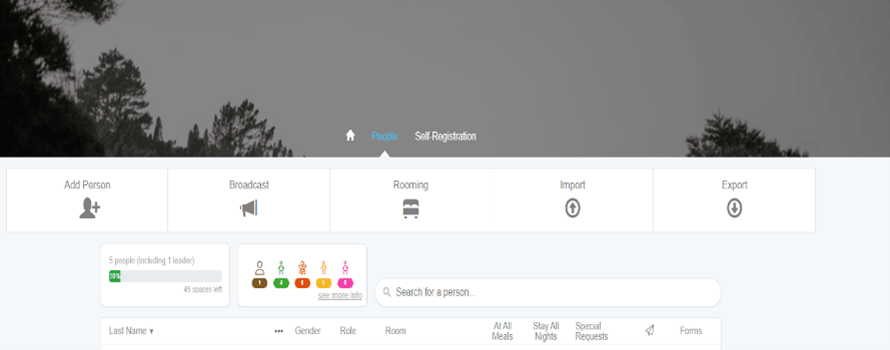
Navigate to the People tab.
Click the Add Person button.
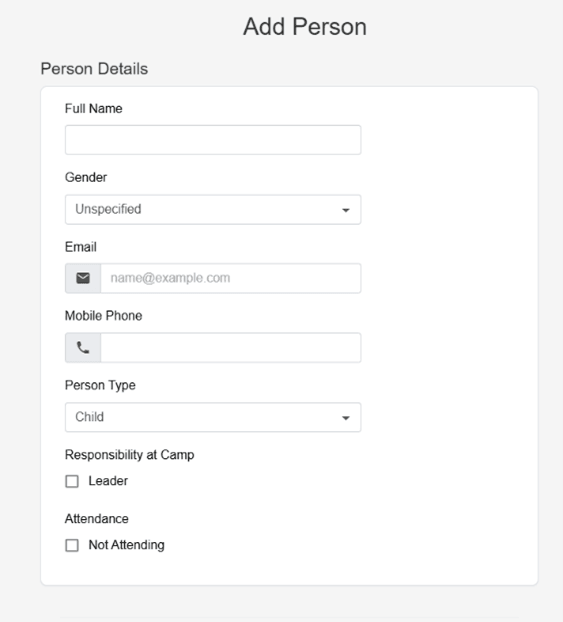
Enter the required details (Name, Email, etc.)
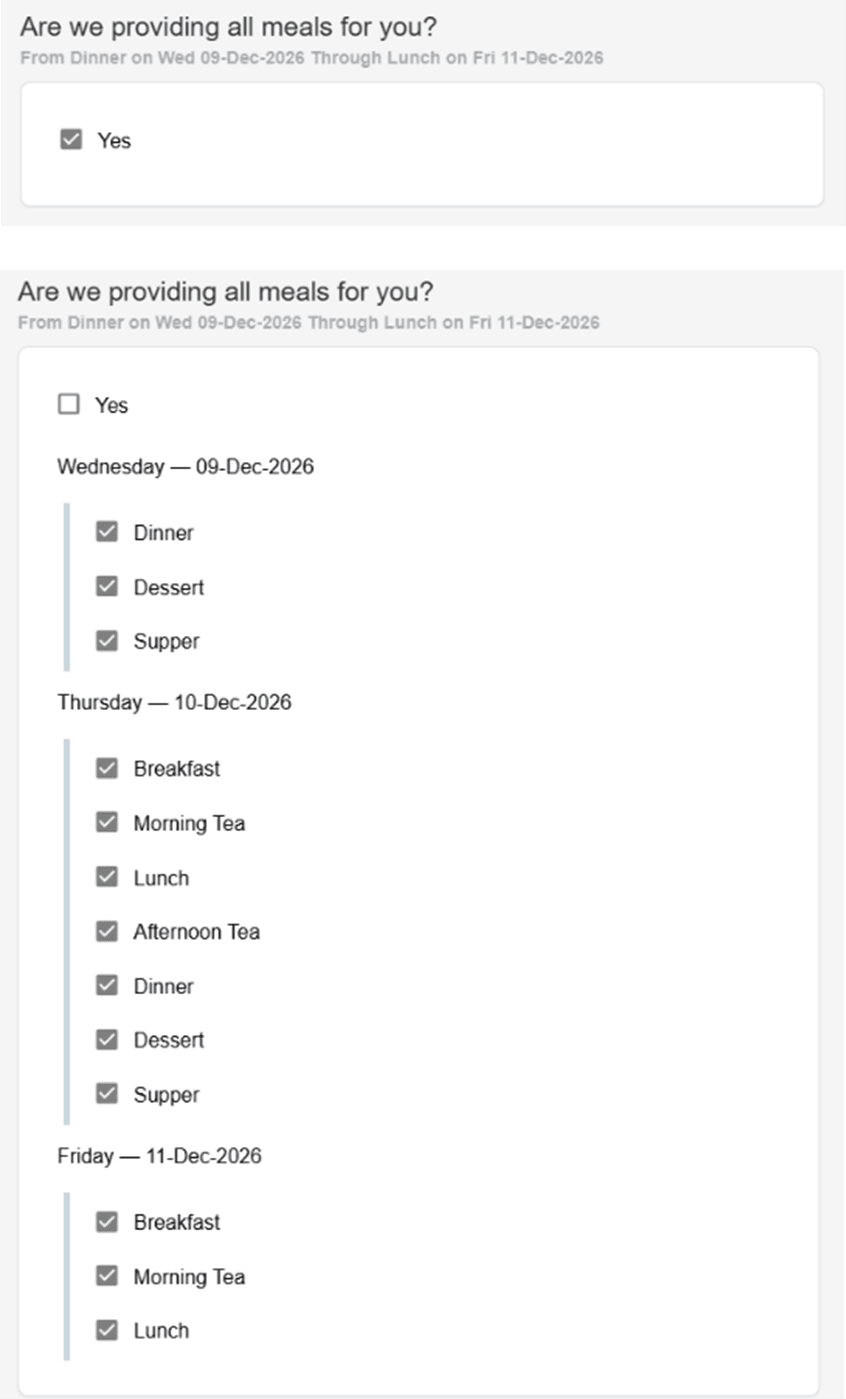
By default, All meals box is ticked as yes if attendees are not eating all meals untick the yes box. Then untick any meals you are not eating. and leave only the meals the attendee is eating ticked.
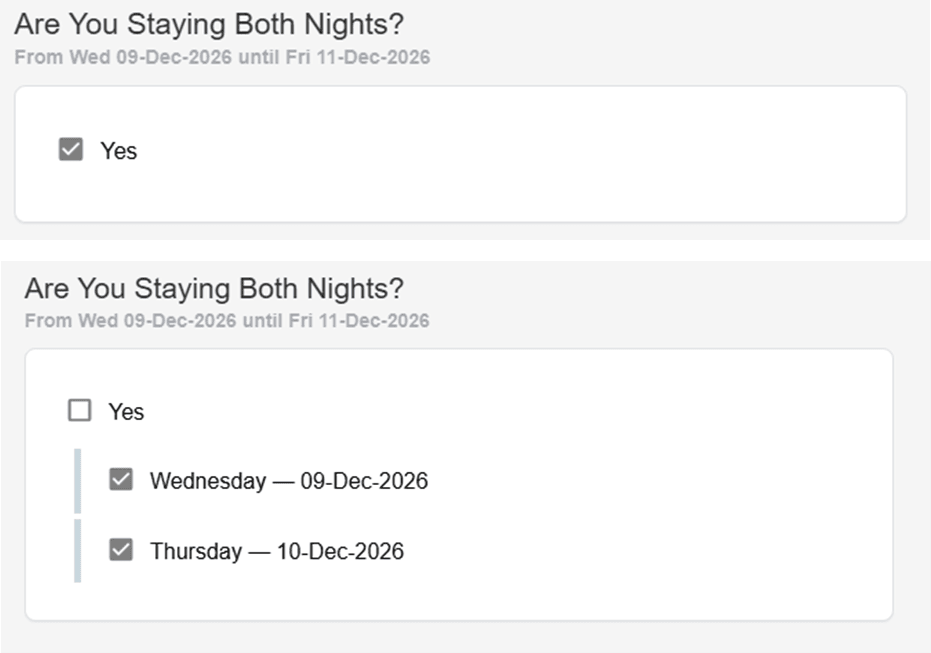
By default, ‘Are You Staying All Nights’ box is ticked as yes if attendees are not staying all nights untick the yes box. Then untick the nights they are not staying. leave only the nights the attendee is staying ticked
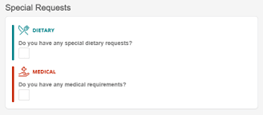
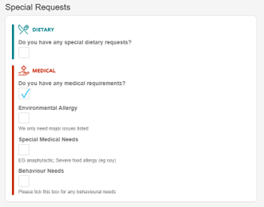
If there are any ‘DIETARY’ needs tick the box.
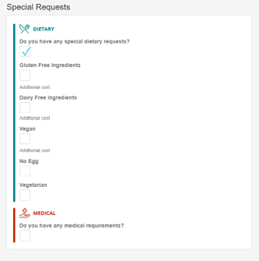
We only cater for these specific requests. Tick whichever option provides your dietary needs.
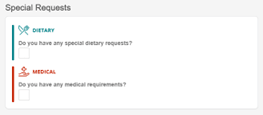
If there are any ‘MEDICAL’ needs tick the box.
If you have ‘ENVIRONMENTAL ALLERGY’ tick the box and choose from the drop-down list.
If you have ‘SPECIAL MEDICAL NEEDS’ tick the box and provide an explanation.
If you have ‘BEHAVIOUR NEEDS’ tick the box and choose from the drop-down list.
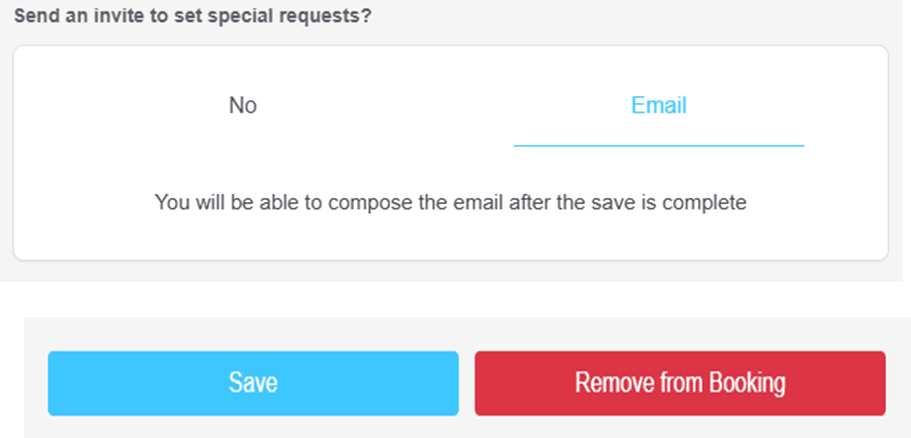
You can send an invite to the attendee. If ‘Email’ is blue after you save. The default is ‘No’
To save the attendee to your booking press ‘Save’.
Assigning Rooming
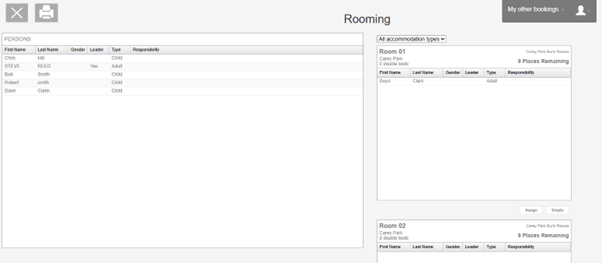
The rooming tool in Venue 360 is typically a visual, "drag-and-drop" interface.
Navigate to the Rooming tab.
View All Accommodation Types: You will see a list of buildings or rooms assigned to your booking on one side of the screen.
View PERSONS: Your list of imported attendees will usually appear in the persons on the left side of the screen.
Assign Rooms: Drag and Drop the person. Click and hold an attendee’s name and drag it into the specific room you wish to assign them to.
Manage Capacity: The system will show a counter Places remaining to prevent overbooking a room.